
ssh: Secure Shell#
Just as HTTP is a protocol for unencrypted web traffic and HTTPS is a protocol for encrypted web traffic, SSH is a protocol for encrypted remote login and other secure network services.
Using the SSH protocol, you can connect and authenticate to remote servers and services.
In simple words, you can use SSH to access another computer over a network and execute commands on the other computer. All of this takes place in the command line, without needing a graphical interface. This is how most servers are administered.
SSH Keys#
SSH keys are a way to identify trusted computers and communicate with them without involving passwords.
SSH keys are two files that are generated together: a public key and a private key. The private key is kept on the computer you log in from, while the public key is shared with all the computers you want to log communicate with.
Warning
Never share or upload your private SSH key!
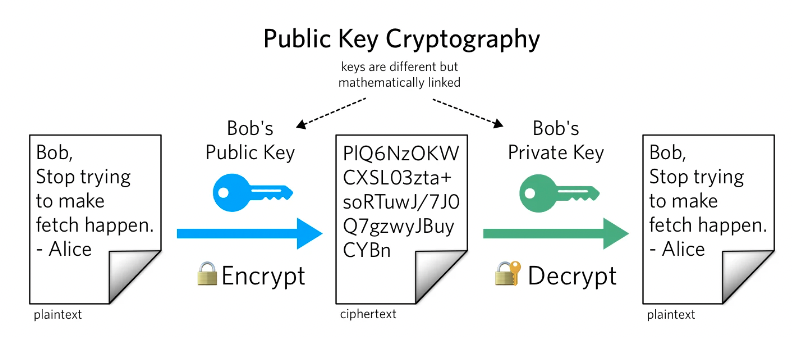
Fig. 7 SSH keys#
Check if you already have an SSH key#
If you want to check if you already have an SSH key, you can use the following command:
ls -al ~/.ssh
Note
For Windows Users
If you are using Windows and the above command does not work, you can use the following commands: dir ~/.ssh or notepad ~/.ssh/id_rsa.pub
Alternatively, check [your home directory]/.ssh/id_rsa where [your home directory] is the directory where your home directory (C:\Users\username) is located.
ls: prints the contents of a directory
-a: list all files in long format
-l: use a long listing format
~/.ssh: path to the ssh folder
~: home directory
.ssh: hidden ssh folder in your home directory
If you see a file named id_rsa.pub, you already have an SSH key pair and you can skip the next step.
The filename ending with .pub is your public key. The other file is the corresponding private key. If you don’t have these files (or you don’t even have a .ssh directory), you need to create them.
Generate a new SSH key, if needed#
SSH keys are generated using a command line tool called ssh-keygen. This tool is installed by default on most systems.
ssh-keygen -t ed25519 -C "your_email@example.com"
-t: the type of encryption to use
ed25519: the encryption type
-C: comment to help you identify the key
Try the ls -al ~/.ssh command again to see your new SSH key.
Copy the SSH key to your clipboard#
pbcopy < ~/.ssh/id_rsa.pub
clip < ~/.ssh/id_rsa.pub
Now you can paste your public ssh key on the website you want to use it on.
Add SSH key to GitHub#

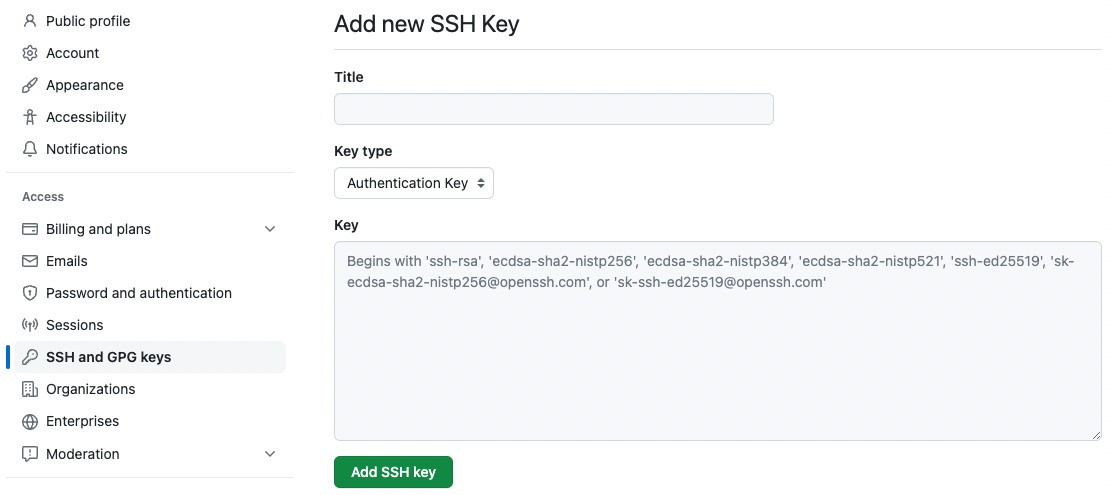
Go to your GitHub account settings and click on SSH and GPG keys. Then click on New SSH key. Give a title to your key (ideally this should be something like Macbook 2023) and paste the key in the box below. Click on Add SSH key.
Copy the SSH public key to your clipboard. If your SSH public key file has a different name than the example code, modify the filename to match your current setup. When copying your key, don’t add any newlines or whitespace.
In the upper-right corner of any page, click your profile photo, then click Settings.
In the “Access” section of the sidebar, click SSH and GPG keys.
Click New SSH key or Add SSH key.
In the “Title” field, add a descriptive label for the new key. For example, if you’re using a personal laptop, you might call this key “Personal laptop”.
In the “Key” field, paste your public key.
Click Add SSH key.