
LLM Tools#
An agent in the context of Large Language Models (LLMs) is a loop where a model:
Reads user input + context
Decides whether to call tools or not
Uses tool results to reason
Replies or takes another action

OpenAI’s platform supports this with:
Responses API + function tools (a.k.a. function calling) to let the model call your code,
Embeddings for retrieval/memory, and
An Agents SDK that wraps common agentic patterns (tools, state, tracing) to speed development.
Function Calling#
Tools in the context of LLMs are custom interventions in the default chat loop. For example, you might want to get real-time information from the web, access a database, or perform custom calculations in response to user queries.
In other words, any time you want the model to deviate from its default behavior of generating text based on its training data, you can use tools.
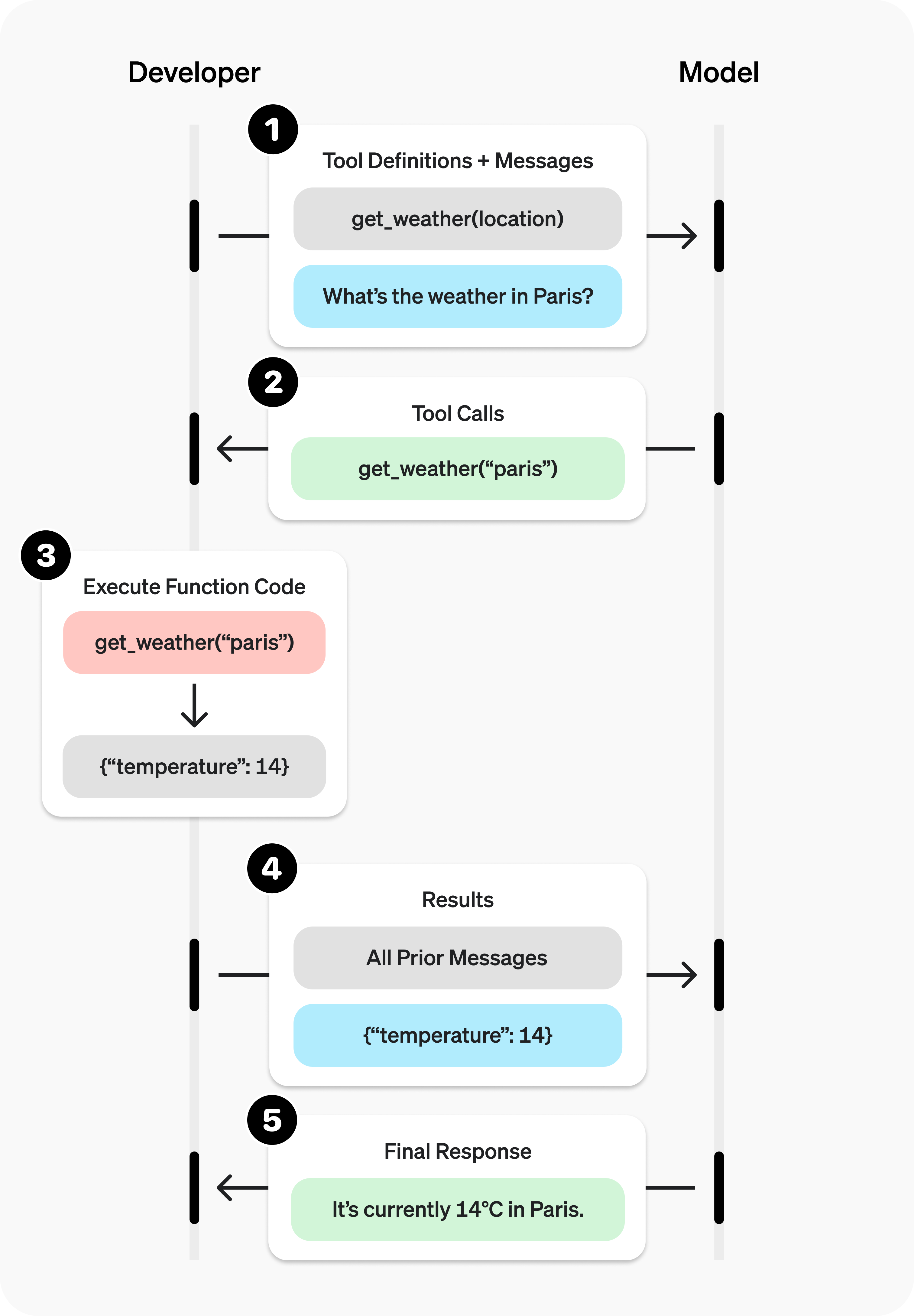
Let’s say the user wanted to know the pre-requisite for CSC-122. Now, the general-purpose model may not know this information, or it may be out of date. Instead, you can define a function that retrieves this information from some source (e.g., a database, an API, or a hardcoded dictionary).
# Create a running input list we will add to over time
input_list = [
    {
        "role":    "user",
        "content": "What is the pre-requisite for CSC-122?"
    }
]
Then you can create a Tool that intervenes in the default chat loop by calling a function.
Define a list of callable tools for the model
# Function logic for get_prerequisite
def get_prerequisite(args):
    course = args['course']
    prereqs = {"CSC-121": "CSC-105",
            "CSC-122": "CSC-121",
            "CSC-223": "CSC-122"}
    return f"The pre-req for {course} is {prereqs[course]}"

# 1. Define a list of callable tools for the model
tools = [
{
    "type": "function",
    "name": "get_prerequisite",
    "description": "Get pre-requisite of Computer Science courses at Furman.",
    "parameters": {
        "type": "object",
        "properties": {
            "course": {
                "type": "string",
                "description": "Course code in format CSC-XXX",
            },
        },
        "required": ["course"],
    },
}]
Prompt the model with tools defined
response = client.responses.create(
    model="gpt-5",
    tools=tools,
    input=input_list,
)
Check if the model wants to call a tool. Call it if so, and add the result to the input list.
# Save function call outputs for subsequent requests
input_list += response.output

for item in response.output:
    if item.type == "function_call":
        if item.name == "get_prerequisite":
            # 3. Execute the function logic for get_prerequisite
            prereq = get_prerequisite(json.loads(item.arguments))

            # 4. Provide function call results to the model
            input_list.append({
                "type": "function_call_output",
                "call_id": item.call_id,
                "output": json.dumps({
                    "prereq": prereq
                })
            })
Get a response from the model, now with the function call result in context
# print("Final input:")
# print(input_list)

response = client.responses.create(
  model="gpt-5",
  # instructions="Respond only with pre-reqs generated by a tool.",
  tools=tools,
  input=input_list,
)

# 5. The model should be able to give a response!
print("Final output:")
# print(response.model_dump_json(indent=2))
print("\n" + response.output_text)
Web Search#
OpenAI API comes with some built-in tools you can use out of the box.
One example is the search tool, which allows the model to perform web searches to retrieve up-to-date information.
Web search allows models to access up-to-date information from the internet and provide answers with sourced citations.
To enable this, use the web search tool in the Responses API or, in some cases, Chat Completions.
There are three main types of web search available with OpenAI models:
Non‑reasoning web search: The non-reasoning model sends the user’s query to the web search tool, which returns the response based on top results. There’s no internal planning and the model simply passes along the search tool’s responses. This method is fast and ideal for quick lookups.
Agentic search with reasoning models is an approach where the model actively manages the search process. It can perform web searches as part of its chain of thought, analyze results, and decide whether to keep searching. This flexibility makes agentic search well suited to complex workflows, but it also means searches take longer than quick lookups. For example, you can adjust GPT-5’s reasoning level to change both the depth and latency of the search.
Deep research is a specialized, agent-driven method for in-depth, extended investigations by reasoning models. The model conducts web searches as part of its chain of thought, often tapping into hundreds of sources. Deep research can run for several minutes and is best used with background mode. These tasks typically use models like
o3-deep-research,o4-mini-deep-research, orgpt-5with reasoning level set tohigh.
Using the Responses API, you can enable web search by configuring it in the tools array in an API request to generate content. Like any other tool, the model can choose to search the web or not based on the content of the input prompt.
from openai import OpenAI
client = OpenAI()

response = client.responses.create(
    model="gpt-5",
    tools=[{"type": "web_search"}],
    input="What was a positive news story from today?"
)

print(response.output_text)
You can customize the behavior of built-in tools using parameters. For example, you can filter for
from openai import OpenAI
client = OpenAI()

response = client.responses.create(
  model="gpt-5",
  reasoning={"effort": "low"},
  tools=[
      {
          "type": "web_search",
          "filters": {
              "allowed_domains": [
                  "pubmed.ncbi.nlm.nih.gov",
                  "clinicaltrials.gov",
                  "www.who.int",
                  "www.cdc.gov",
                  "www.fda.gov",
              ]
          },
      }
  ],
  tool_choice="auto",
  include=["web_search_call.action.sources"],
  input="Please perform a web search on how semaglutide is used in the treatment of diabetes.",
)

print(response.output_text)
Web search tool example
from openai import OpenAI
client = OpenAI()

response = client.responses.create(
    model="gpt-5",
    tools=[{"type": "web_search"}],
    input="What was a positive news story from today?"
)

print(response.output_text)
Output and citations#
Model responses that use the web search tool will include two parts:
A
web_search_calloutput item with the ID of the search call, along with the action taken inweb_search_call.action. The action is one of:search, which represents a web search. It will usually (but not always) includes the searchqueryanddomainswhich were searched. Search actions incur a tool call cost (see pricing).open_page, which represents a page being opened. Supported in reasoning models.find_in_page, which represents searching within a page. Supported in reasoning models.
A
messageoutput item containing:The text result in
message.content[0].textAnnotations
message.content[0].annotationsfor the cited URLs
By default, the model’s response will include inline citations for URLs found in the web search results. In addition to this, the url_citation annotation object will contain the URL, title and location of the cited source.
When displaying web results or information contained in web results to end users, inline citations must be made clearly visible and clickable in your user interface.
[
    {
        "type": "web_search_call",
        "id": "ws_67c9fa0502748190b7dd390736892e100be649c1a5ff9609",
        "status": "completed"
    },
    {
        "id": "msg_67c9fa077e288190af08fdffda2e34f20be649c1a5ff9609",
        "type": "message",
        "status": "completed",
        "role": "assistant",
        "content": [
            {
                "type": "output_text",
                "text": "On March 6, 2025, several news...",
                "annotations": [
                    {
                        "type": "url_citation",
                        "start_index": 2606,
                        "end_index": 2758,
                        "url": "https://...",
                        "title": "Title..."
                    }
                ]
            }
        ]
    }
]
Domain filtering#
Domain filtering in web search lets you limit results to a specific set of domains. With the filters parameter you can set an allow-list of up to 20 URLs. When formatting URLs, omit the HTTP or HTTPS prefix. For example, use openai.com instead of https://openai.com/. This approach also includes subdomains in the search. Note that domain filtering is only available in the Responses API with the web_search tool.
Sources#
To view all URLs retrieved during a web search, use the sources field. Unlike inline citations, which show only the most relevant references, sources returns the complete list of URLs the model consulted when forming its response. The number of sources is often greater than the number of citations. Real-time third-party feeds are also surfaced here and are labeled as oai-sports, oai-weather, or oai-finance. The sources field is available with both the web_search and web_search_preview tools.
response = client.responses.create(
  model="gpt-5",
  reasoning={"effort": "low"},
  tools=[
      {
          "type": "web_search",
          "filters": {
              "allowed_domains": [
                  "furman.edu"
              ]
          },
      }
  ],
  tool_choice="auto",
  include=["web_search_call.action.sources"],
  input="Please perform a web search on when is the last day of Fall 2025 classes.",
)

print(response.output_text)
User location#
To refine search results based on geography, you can specify an approximate user location using country, city, region, and/or timezone.
The
cityandregionfields are free text strings, likeMinneapolisandMinnesotarespectively.The
countryfield is a two-letter ISO country code, likeUS.The
timezonefield is an IANA timezone likeAmerica/Chicago.
Note that user location is not supported for deep research models using web search.
Customizing user location
from openai import OpenAI
client = OpenAI()

response = client.responses.create(
    model="o4-mini",
    tools=[{
        "type": "web_search",
        "user_location": {
            "type": "approximate",
            "country": "GB",
            "city": "London",
            "region": "London",
        }
    }],
    input="What are the best restaurants around Granary Square?",
)

print(response.output_text)
API compatibility
Web search is available in the Responses API as the generally available version of the tool, web_search, as well as the earlier tool version, web_search_preview. To use web search in the Chat Completions API, use the specialized web search models gpt-4o-search-preview and gpt-4o-mini-search-preview.
Limitations
Web search is currently not supported in
gpt-5withminimalreasoning, andgpt-4.1-nano.When used as a tool in the Responses API, web search has the same tiered rate limits as the models above.
Web search is limited to a context window size of 128000 (even with
gpt-4.1andgpt-4.1-minimodels).
File Search Tool#
File search allow models to search your files for relevant information before generating a response.
File search is a tool available in the Responses API. It enables models to retrieve information in a knowledge base of previously uploaded files through semantic and keyword search. By creating vector stores and uploading files to them, you can augment the models’ inherent knowledge by giving them access to these knowledge bases or vector_stores.
To learn more about how vector stores and semantic search work, refer to our retrieval guide.
This is a hosted tool managed by OpenAI, meaning you don’t have to implement code on your end to handle its execution. When the model decides to use it, it will automatically call the tool, retrieve information from your files, and return an output.
Prior to using file search with the Responses API, you need to have set up a knowledge base in a vector store and uploaded files to it.
Create a vector store and upload files to it.
import requests
from io import BytesIO
from openai import OpenAI

client = OpenAI()

def create_file(client, file_path):
    if file_path.startswith("http://") or file_path.startswith("https://"):
        # Download the file content from the URL
        response = requests.get(file_path)
        file_content = BytesIO(response.content)
        file_name = file_path.split("/")[-1]
        file_tuple = (file_name, file_content)
        result = client.files.create(
            file=file_tuple,
            purpose="assistants"
        )
    else:
        # Handle local file path
        with open(file_path, "rb") as file_content:
            result = client.files.create(
                file=file_content,
                purpose="assistants"
            )
    print(result.id)
    return result.id

# Replace with your own file path or URL
file_id = create_file(client, "https://cdn.openai.com/API/docs/deep_research_blog.pdf")
Create a vector store and upload files to it.
vector_store = client.vector_stores.create(
    name="knowledge_base"
)
print(vector_store.id)
Add files to the vector store.
result = client.vector_stores.files.create(
    vector_store_id=vector_store.id,
    file_id=file_id
)
print(result)
Check the status of the file upload.
result = client.vector_stores.files.list(
    vector_store_id=vector_store.id
)
print(result)
Once your knowledge base is set up, you can include the
file_searchtool in the list of tools available to the model, along with the list of vector stores in which to search.
from openai import OpenAI
client = OpenAI()

response = client.responses.create(
    model="gpt-4.1",
    input="What is deep research by OpenAI?",
    tools=[{
        "type": "file_search",
        "vector_store_ids": ["<vector_store_id>"]
    }]
)
print(response)
When this tool is called by the model, you will receive a response with multiple outputs:
A
file_search_calloutput item, which contains the id of the file search call.A
messageoutput item, which contains the response from the model, along with the file citations.
{
  "output": [
    {
      "type": "file_search_call",
      "id": "fs_67c09ccea8c48191ade9367e3ba71515",
      "status": "completed",
      "queries": ["What is deep research?"],
      "search_results": null
    },
    {
      "id": "msg_67c09cd3091c819185af2be5d13d87de",
      "type": "message",
      "role": "assistant",
      "content": [
        {
          "type": "output_text",
          "text": "Deep research is a sophisticated capability that allows for extensive inquiry and synthesis of information across various domains. It is designed to conduct multi-step research tasks, gather data from multiple online sources, and provide comprehensive reports similar to what a research analyst would produce. This functionality is particularly useful in fields requiring detailed and accurate information...",
          "annotations": [
            {
              "type": "file_citation",
              "index": 992,
              "file_id": "file-2dtbBZdjtDKS8eqWxqbgDi",
              "filename": "deep_research_blog.pdf"
            },
            {
              "type": "file_citation",
              "index": 992,
              "file_id": "file-2dtbBZdjtDKS8eqWxqbgDi",
              "filename": "deep_research_blog.pdf"
            },
            {
              "type": "file_citation",
              "index": 1176,
              "file_id": "file-2dtbBZdjtDKS8eqWxqbgDi",
              "filename": "deep_research_blog.pdf"
            },
            {
              "type": "file_citation",
              "index": 1176,
              "file_id": "file-2dtbBZdjtDKS8eqWxqbgDi",
              "filename": "deep_research_blog.pdf"
            }
          ]
        }
      ]
    }
  ]
}
Retrieval customization#
Limiting the number of results#
Using the file search tool with the Responses API, you can customize the number of results you want to retrieve from the vector stores. This can help reduce both token usage and latency, but may come at the cost of reduced answer quality.
response = client.responses.create(
    model="gpt-4.1",
    input="What is deep research by OpenAI?",
    tools=[{
        "type": "file_search",
        "vector_store_ids": ["<vector_store_id>"],
        "max_num_results": 2
    }]
)
print(response)
Include search results in the response#
While you can see annotations (references to files) in the output text, the file search call will not return search results by default.
To include search results in the response, you can use the include parameter when creating the response.
response = client.responses.create(
    model="gpt-4.1",
    input="What is deep research by OpenAI?",
    tools=[{
        "type": "file_search",
        "vector_store_ids": ["<vector_store_id>"]
    }],
    include=["file_search_call.results"]
)
print(response)
Meta-data filtering#
You can filter the search results based on the metadata of the files. For more details, refer to our retrieval guide, which covers:
How to set attributes on vector store files
How to define filters
response = client.responses.create(
    model="gpt-4.1",
    input="What is deep research by OpenAI?",
    tools=[{
        "type": "file_search",
        "vector_store_ids": ["<vector_store_id>"],
        "filters": {
            "type": "eq",
            "key": "type",
            "value": "blog"
        }
    }]
)
print(response)
Supported files#
Supported files For text/ MIME types, the encoding must be one of utf-8, utf-16, or ascii.
File |
format MIME type |
|---|---|
.c |
text/x-c |
.cpp |
text/x-c++ |
.cs |
text/x-csharp |
.css |
text/css |
.doc |
application/msword |
.docx |
application/vnd.openxmlformats-officedocument.wordprocessingml.document |
.go |
text/x-golang |
.html |
text/html |
.java |
text/x-java |
.js |
text/javascript |
.json |
application/json |
.md |
text/markdown |
application/pdf |
|
.php |
text/x-php |
.pptx |
application/vnd.openxmlformats-officedocument.presentationml.presentation |
.py |
text/x-python |
.rb |
text/x-ruby |
.sh |
application/x-sh |
.tex |
text/x-tex |
.ts |
application/typescript |
.txt |
text/plain |
Retrieval-Augmented Generation (RAG)#
Search your data using semantic similarity.
The Retrieval API allows you to perform semantic search over your data, which is a technique that surfaces semantically similar results — even when they match few or no keywords. Retrieval is useful on its own, but is especially powerful when combined with our models to synthesize responses.
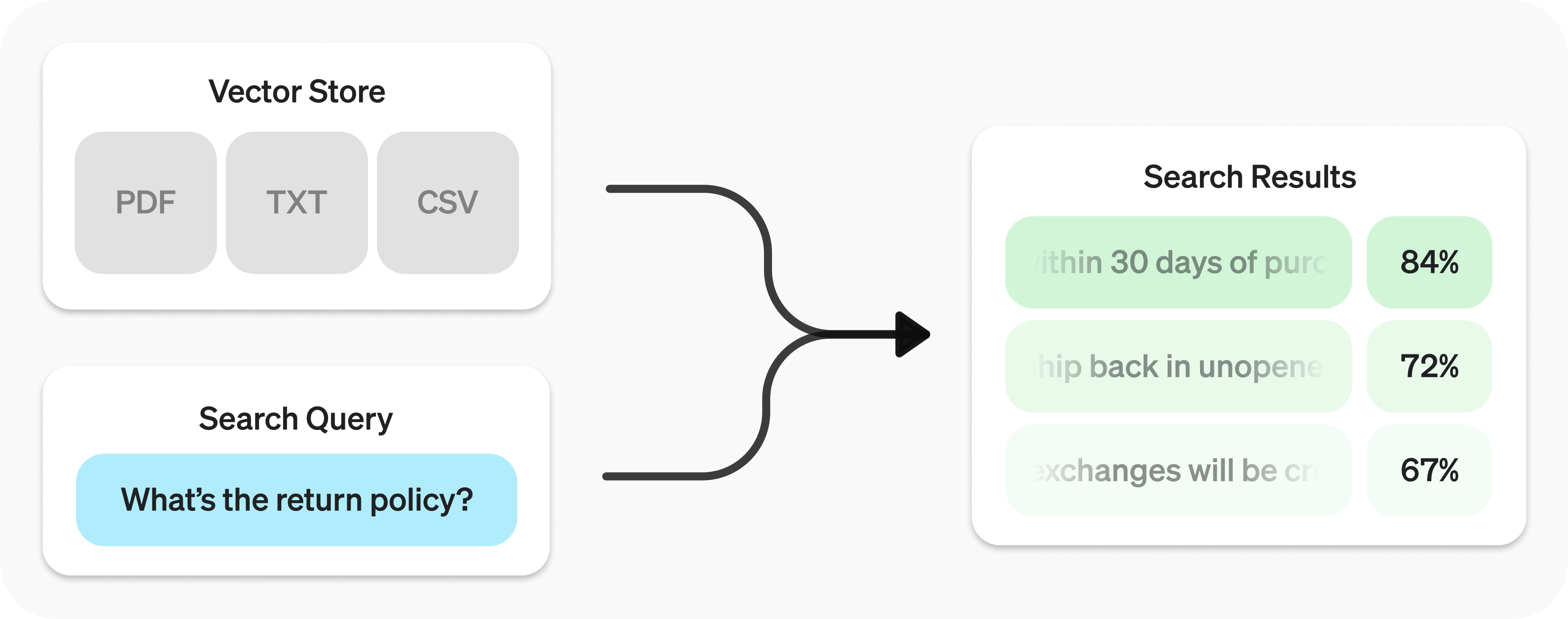
The Retrieval API is powered by vector stores, which serve as indices for your data. This guide will cover how to perform semantic search, and go into the details of vector stores.
1. Create a Vector Store#
Create vector store and upload files.
Vector stores are the containers that power semantic search for the Retrieval API and the file search tool. When you add a file to a vector store it will be automatically chunked, embedded, and indexed.
Vector stores contain
vector_store_fileobjects, which are backed by afileobject.Object type
Description
file
Represents content uploaded through the Files API. Often used with vector stores, but also for fine-tuning and other use cases.
vector_store
Container for searchable files.
vector_store.file
Wrapper type specifically representing a file that has been chunked and embedded, and has been associated with a vector_store.Contains attributes map used for filtering.
Create vector store with files
from openai import OpenAI
client = OpenAI()

vector_store = client.vector_stores.create(        # Create vector store
    name="Support FAQ",
)

client.vector_stores.files.upload_and_poll(        # Upload file
    vector_store_id=vector_store.id,
    file=open("customer_policies.txt", "rb")
)
2. Semantic Search Query#
Semantic search is a technique that leverages vector embeddings to surface semantically relevant results. Importantly, this includes results with few or no shared keywords, which classical search techniques might miss.
For example, let’s look at potential results for "When did we go to the moon?":
Text |
Keyword Similarity |
Semantic Similarity |
|---|---|---|
The first lunar landing occurred in July of 1969. |
0% |
65% |
The first man on the moon was Neil Armstrong. |
27% |
43% |
When I ate the moon cake, it was delicious. |
40% |
28% |
(Jaccard used for keyword, cosine with text-embedding-3-small used for semantic.)
Notice how the most relevant result contains none of the words in the search query. This flexibility makes semantic search a very powerful technique for querying knowledge bases of any size.
Semantic search is powered by vector stores.
Send search query to get relevant results.
user_query = "What is the return policy?"

results = client.vector_stores.search(
    vector_store_id=vector_store.id,
    query=user_query,
)
To learn how to use the results with OpenAI models, check out the synthesizing responses section.
Performing semantic search
You can query a vector store using the search function and specifying a query in natural language. This will return a list of results, each with the relevant chunks, similarity scores, and file of origin.
Search query
results = client.vector_stores.search(
    vector_store_id=vector_store.id,
    query="How many woodchucks are allowed per passenger?",
)
Results
{
  "object": "vector_store.search_results.page",
  "search_query": "How many woodchucks are allowed per passenger?",
  "data": [
    {
      "file_id": "file-12345",
      "filename": "woodchuck_policy.txt",
      "score": 0.85,
      "attributes": {
        "region": "North America",
        "author": "Wildlife Department"
      },
      "content": [
        {
          "type": "text",
          "text": "According to the latest regulations, each passenger is allowed to carry up to two woodchucks."
        },
        {
          "type": "text",
          "text": "Ensure that the woodchucks are properly contained during transport."
        }
      ]
    },
    {
      "file_id": "file-67890",
      "filename": "transport_guidelines.txt",
      "score": 0.75,
      "attributes": {
        "region": "North America",
        "author": "Transport Authority"
      },
      "content": [
        {
          "type": "text",
          "text": "Passengers must adhere to the guidelines set forth by the Transport Authority regarding the transport of woodchucks."
        }
      ]
    }
  ],
  "has_more": false,
  "next_page": null
}
A response will contain 10 results maximum by default, but you can set up to 50 using the max_num_results param.
Synthesizing responses#
After performing a query you may want to synthesize a response based on the results. You can leverage our models to do so, by supplying the results and original query, to get back a grounded response.
Perform search query to get results
from openai import OpenAI

client = OpenAI()

user_query = "What is the return policy?"

results = client.vector_stores.search(
    vector_store_id=vector_store.id,
    query=user_query,
)
Synthesize a response based on results
formatted_results = format_results(results.data)

'\n'.join('\n'.join(c.text) for c in result.content for result in results.data)

completion = client.chat.completions.create(
    model="gpt-4.1",
    messages=[
        {
            "role": "developer",
            "content": "Produce a concise answer to the query based on the provided sources."
        },
        {
            "role": "user",
            "content": f"Sources: {formatted_results}\n\nQuery: '{user_query}'"
        }
    ],
)

print(completion.choices[0].message.content)
"Our return policy allows returns within 30 days of purchase."
This uses a sample format_results function, which could be implemented like so:
Sample result formatting function
def format_results(results):
    formatted_results = ''
    for result in results.data:
        formatted_result = f"<result file_id='{result.file_id}' file_name='{result.file_name}'>"
        for part in result.content:
            formatted_result += f"<content>{part.text}</content>"
        formatted_results += formatted_result + "</result>"
    return f"<sources>{formatted_results}</sources>"
Key ideas:
• You declare tool schema; the model emits a function call with arguments.
• You run the function and send a tool response back for the model to finish the thought.
Details: function tools / arguments / streaming formats are in the API reference.
End to End example#
# pip install openai numpy
import os, json, math, numpy as np
from openai import OpenAI
client = OpenAI(api_key=os.environ["OPENAI_API_KEY"])

# --- Tools ---
def calc(expression: str) -> str:
    return str(eval(expression, {"__builtins__": {}}, {"pi": math.pi, "e": math.e}))

CORPUS = [
  "Furman University is in Greenville, SC.",
  "CSC-475 is an applied data science capstone with BMW collaboration.",
  "Embeddings enable semantic search and RAG."
]
E_MODEL = "text-embedding-3-small"
EMB = np.vstack([client.embeddings.create(model=E_MODEL, input=CORPUS).data[i].embedding for i in range(len(CORPUS))])

def rag_search(query: str, k=3) -> str:
    qv = np.array(client.embeddings.create(model=E_MODEL, input=query).data[0].embedding)
    sims = EMB @ qv / (np.linalg.norm(EMB,axis=1)*np.linalg.norm(qv)+1e-9)
    idx = np.argsort(-sims)[:k]
    return "\n".join([f"- {CORPUS[i]}" for i in idx])

TOOLS = [
  {"type":"function","function":{
    "name":"calc","description":"Evaluate a math expression.",
    "parameters":{"type":"object","properties":{"expression":{"type":"string"}}, "required":["expression"]}
  }},
  {"type":"function","function":{
    "name":"rag_search","description":"Retrieve helpful facts for a user question.",
    "parameters":{"type":"object","properties":{"query":{"type":"string"}}, "required":["query"]}
  }}
]

def step(user_text: str):
    r = client.responses.create(model="gpt-4.1", tools=TOOLS, input=[{"role":"user","content":user_text}])
    while True:
        tool_call = next((b for b in r.output if b.type=="tool_call"), None)
        if not tool_call:
            print("".join(b.text for b in r.output if b.type=="output_text")); break
        name = tool_call.tool_name; args = json.loads(tool_call.arguments)
        result = calc(**args) if name=="calc" else rag_search(**args)
        r = client.responses.create(model="gpt-4.1",
            tools=TOOLS,
            input=[{"role":"user","content":user_text},
                   {"role":"tool","tool_call_id":tool_call.id,"content":result}]
        )

if __name__=="__main__":
    step("Using RAG, tell me what CSC-475 is.")
    step("Compute (sin(pi/2)**2 + cos(0)**2). Use the calculator.")
Remote MCP#
Use connectors and remote MCP (Model Context Protocol) servers to give models new capabilities.
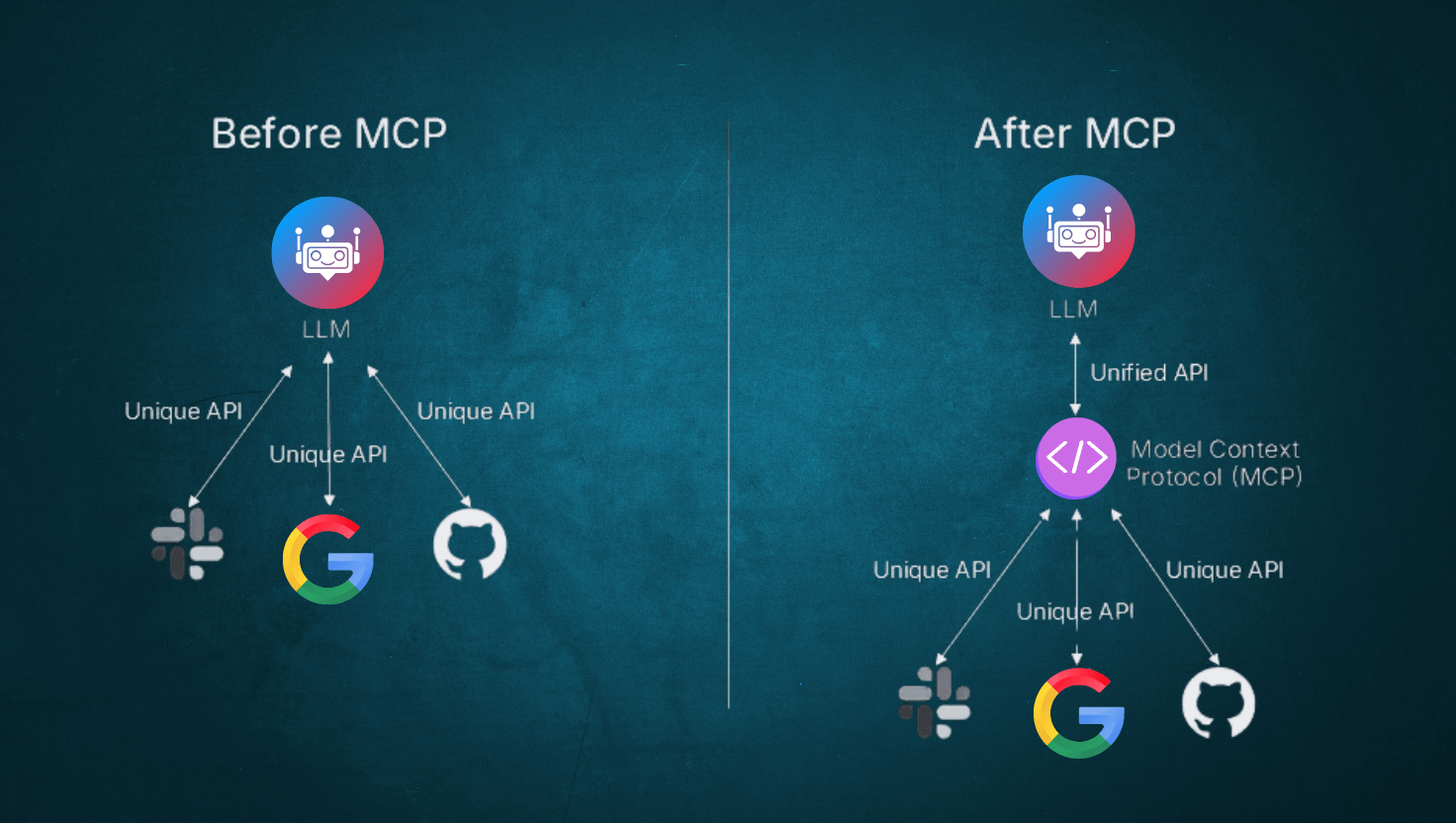
In addition to tools you make available to the model with function calling, you can give models new capabilities using connectors and remote MCP servers. These tools give the model the ability to connect to and control external services when needed to respond to a user’s prompt. These tool calls can either be allowed automatically, or restricted with explicit approval required by you as the developer.
Connectors are OpenAI-maintained MCP wrappers for popular services like Google Workspace or Dropbox, like the connectors available in ChatGPT.
Remote MCP servers can be any server on the public Internet that implements a remote Model Context Protocol (MCP) server.
This guide will show how to use both remote MCP servers and connectors to give the model access to new capabilities.
Check out the examples below to see how remote MCP servers and connectors work through the Responses API. Both connectors and remote MCP servers can be used with the mcp built-in tool type.
Using remote MCP servers
Using connectors
Remote MCP servers require a server_url. Depending on the server, you may also need an OAuth authorization parameter containing an access token.
from openai import OpenAI

client = OpenAI()

resp = client.responses.create(
    model="gpt-5",
    tools=[
        {
            "type": "mcp",
            "server_label": "dmcp",
            "server_description": "A Dungeons and Dragons MCP server to assist with dice rolling.",
            "server_url": "https://dmcp-server.deno.dev/sse",
            "require_approval": "never",
        },
    ],
    input="Roll 2d4+1",
)

print(resp.output_text)
Connectors require a connector_id parameter, and an OAuth access token provided by your application in the authorization parameter.
from openai import OpenAI

client = OpenAI()

resp = client.responses.create(
    model="gpt-5",
    tools=[
        {
            "type": "mcp",
            "server_label": "Dropbox",
            "connector_id": "connector_dropbox",
            "authorization": "<oauth access token>",
            "require_approval": "never",
        },
    ],
    input="Summarize the Q2 earnings report.",
)

print(resp.output_text)
The API will return new items in the output array of the model response. If the model decides to use a Connector or MCP server, it will first make a request to list available tools from the server, which will create a mcp_list_tools output item. From the simple remote MCP server example above, it contains only one tool definition:
{
    "id": "mcpl_68a6102a4968819c8177b05584dd627b0679e572a900e618",
    "type": "mcp_list_tools",
    "server_label": "dmcp",
    "tools": [
        {
            "annotations": null,
            "description": "Given a string of text describing a dice roll...",
            "input_schema": {
                "$schema": "https://json-schema.org/draft/2020-12/schema",
                "type": "object",
                "properties": {
                    "diceRollExpression": {
                        "type": "string"
                    }
                },
                "required": ["diceRollExpression"],
                "additionalProperties": false
            },
            "name": "roll"
        }
    ]
}
Listing available tools#
When you specify a remote MCP server in the tools parameter, the API will attempt to get a list of tools from the server. The Responses API works with remote MCP servers that support either the Streamable HTTP or the HTTP/SSE transport protocols.
If successful in retrieving the list of tools, a new mcp_list_tools output item will appear in the model response output. The tools property of this object will show the tools that were successfully imported.
{
    "id": "mcpl_68a6102a4968819c8177b05584dd627b0679e572a900e618",
    "type": "mcp_list_tools",
    "server_label": "dmcp",
    "tools": [
        {
            "annotations": null,
            "description": "Given a string of text describing a dice roll...",
            "input_schema": {
                "$schema": "https://json-schema.org/draft/2020-12/schema",
                "type": "object",
                "properties": {
                    "diceRollExpression": {
                        "type": "string"
                    }
                },
                "required": ["diceRollExpression"],
                "additionalProperties": false
            },
            "name": "roll"
        }
    ]
}